

PyMongo and Mongodb Atlas connection
How to Connect Python to MongoDB Atlas Using PyMongo
MongoDB Atlas is a fully managed cloud database service that allows you to create, host, and manage MongoDB databases without maintaining your own database server.
Python applications can connect to MongoDB Atlas using PyMongo, the official MongoDB driver for Python.
In this guide, you will learn how to:
- Install PyMongo.
- Create and configure a MongoDB Atlas deployment.
- Create a database user.
- Configure network access.
- Retrieve your Atlas connection string.
- Connect Python to MongoDB Atlas.
- Query MongoDB sample data.
- Store the connection string securely.
- Troubleshoot common connection errors.
Prerequisites
Before continuing, make sure you have:
- Python 3 installed on your computer.
- pip available for installing Python packages.
- A MongoDB Atlas account.
- A MongoDB Atlas database deployment.
- A database user with the required permissions.
Step 1: Install PyMongo
Open a terminal or command prompt and install PyMongo using pip:
python -m pip install pymongoOn systems where Python 3 is accessed using python3, use:
python3 -m pip install pymongoVerify the Installation
Run the following Python code:
import pymongo

print(pymongo.__version__)
If a version number is displayed, PyMongo was installed successfully.
Step 2: Create a MongoDB Atlas Deployment
- Visit MongoDB Atlas .
- Sign in or create a MongoDB Atlas account.
- Create a new project or select an existing project.
- Open the Database section.
- Create a new database deployment.
- Select the free tier if you are learning or testing.
- Choose a cloud provider and region.
- Wait for Atlas to finish creating the deployment.
MongoDB Atlas can optionally load sample data into your deployment. The sample data is required if you want to run the movie query demonstrated later in this guide.
Step 3: Create a Database User
Your application needs a database user to authenticate with MongoDB Atlas.
- Open your Atlas project.
- Navigate to Security > Database Access.
- Click Add New Database User.
- Select password-based authentication.
- Enter a username and strong password.
- Assign the required database privileges.
- Save the database user.
Important: The username and password required in the connection string belong to the MongoDB database user. They are not the credentials used to sign in to the MongoDB Atlas website.
Step 4: Configure Network Access
MongoDB Atlas accepts connections only from IP addresses included in the project's IP access list.
- Open your MongoDB Atlas project.
- Navigate to Security > Network Access.
- Click Add IP Address.
- Select Add My Current IP Address if the application is running on your local computer.
- If the application is deployed on a server, add the server's public IP address.
- Save the changes.
Atlas also provides an Allow Access from Anywhere option using
0.0.0.0/0. This allows connections from every IP address and should only be used temporarily when necessary. In production, allow only trusted application-server IP addresses.
Step 5: Create Your MongoDB Atlas Connection String
A MongoDB connection URI, also called a connection string, tells PyMongo how to locate, authenticate with, and connect to your MongoDB deployment.
A connection string can contain:
- The deployment hostname or IP address.
- The database username and password.
- The authentication mechanism.
- The database name.
- Connection and retry options.
Find Your Atlas Connection String
- Sign in to MongoDB Atlas.
- Open your project.
- Navigate to the Database section.
- Locate your database deployment.
- Click the Connect button.
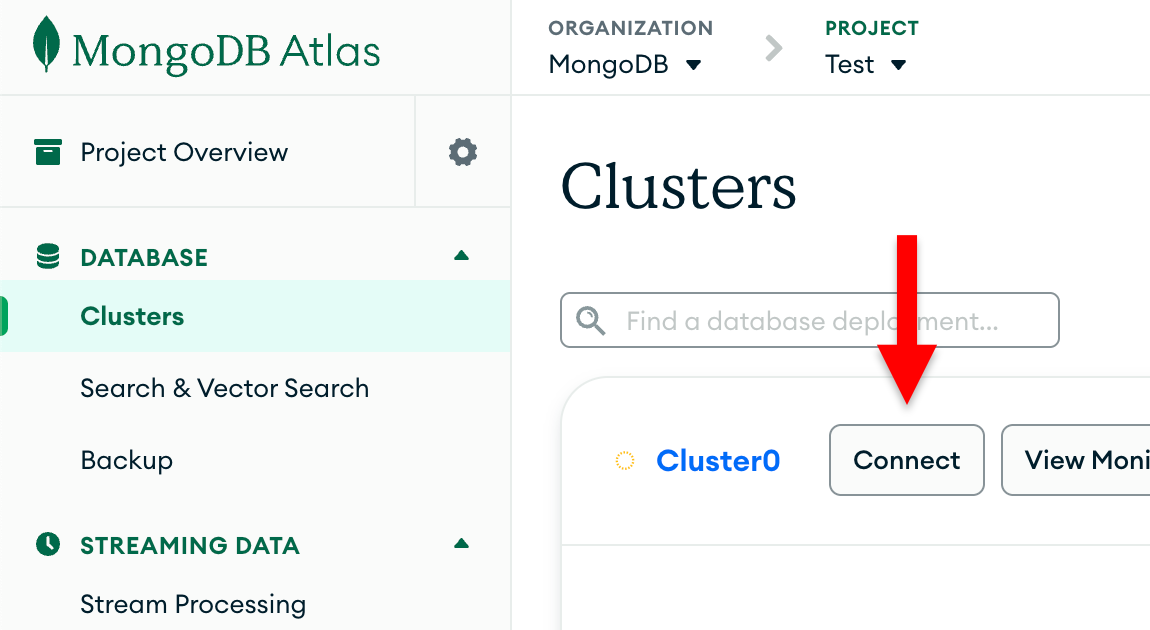
6. Select Drivers under Connect to your application.
7. Select Python as the driver.
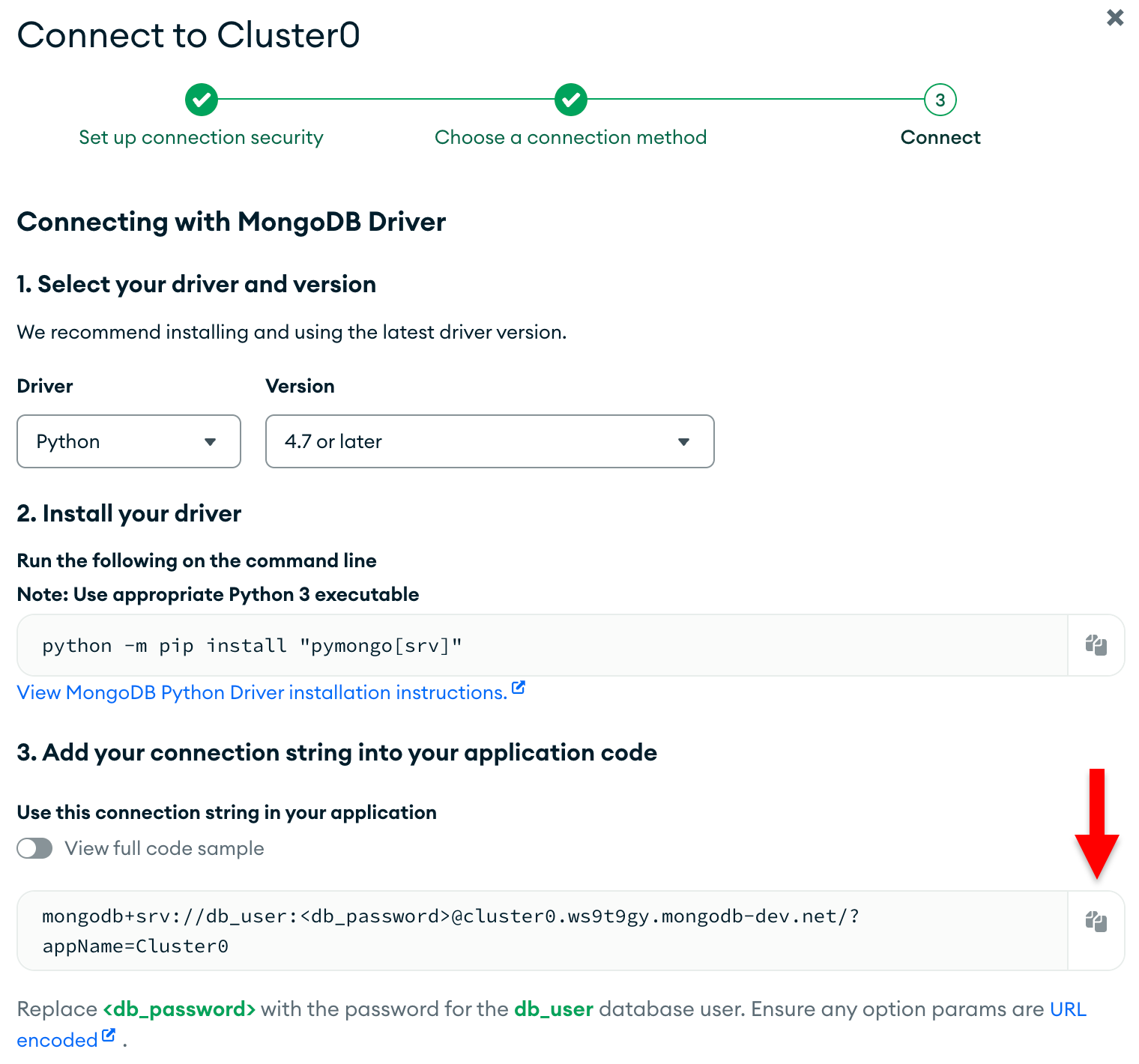
Select the driver version that matches your installed PyMongo version.
Copy the Connection String
Click the copy button displayed beside the connection string. It will look similar to the following:
mongodb+srv://my_username:<db_password>@cluster0.example.mongodb.net/?retryWrites=true&w=majorityThe cluster hostname in this example is only a placeholder. Always use the exact connection string generated by your MongoDB Atlas dashboard.
Replace the Password Placeholder
Replace <db_password> with the password of your MongoDB database user.
For example:
mongodb+srv://my_username:[email protected]/?retryWrites=true&w=majorityAfter replacing the placeholder, your connection string contains sensitive database credentials. Do not publish it, commit it to Git, or share it publicly.
Step 6: Create a PyMongo Application
Create a file named quickstart.py and add the following code:
from pymongo import MongoClient
from pymongo.errors import PyMongoError


uri = (
    "mongodb+srv://my_username:<db_password>"
    "@cluster0.example.mongodb.net/"
    "?retryWrites=true&w=majority"
)

client = MongoClient(
    uri,
    serverSelectionTimeoutMS=5000,
)

try:
    # Send a ping command to verify the connection
    client.admin.command("ping")

    print("Successfully connected to MongoDB Atlas!")

except PyMongoError as error:
    print("Unable to connect to MongoDB Atlas:", error)

finally:
    client.close()
Replace the value of uri with the connection string copied from your MongoDB Atlas dashboard.
How the Code Works
MongoClientcreates a client that communicates with MongoDB Atlas.serverSelectionTimeoutMS=5000limits the server-selection attempt to approximately five seconds.client.admin.command("ping")sends a command to verify that the deployment is reachable.client.close()closes the client after the test completes.
Step 7: Run the PyMongo Application
Run the application using:
python quickstart.pyOn systems that use the python3 command, run:
python3 quickstart.pyExpected output:
Successfully connected to MongoDB Atlas!Query MongoDB Atlas Sample Data
MongoDB Atlas provides sample datasets that can be loaded into your deployment. One of these is the sample_mflix database, which contains a movies collection.
The following example finds a movie with the title Back to the Future.
import json

from pymongo import MongoClient
from pymongo.errors import PyMongoError


uri = (
    "mongodb+srv://my_username:<db_password>"
    "@cluster0.example.mongodb.net/"
    "?retryWrites=true&w=majority"
)

client = MongoClient(
    uri,
    serverSelectionTimeoutMS=5000,
)

try:
    # Verify that the deployment is reachable
    client.admin.command("ping")

    # Select the database
    database = client.get_database("sample_mflix")

    # Select the collection
    movies = database.get_collection("movies")

    # Find a movie by title
    query = {"title": "Back to the Future"}
    movie = movies.find_one(query)

    if movie:
        print(json.dumps(movie, indent=4, default=str))
    else:
        print("Movie not found. Make sure the Atlas sample data is loaded.")

except PyMongoError as error:
    print("MongoDB operation failed:", error)

finally:
    client.close()
Example Output
{
    "_id": "573a1398f29313caabce9682",
    "plot": "A young man is accidentally sent into the past...",
    "genres": [
        "Adventure",
        "Comedy",
        "Sci-Fi"
    ],
    "title": "Back to the Future"
}
Your document may contain additional fields. The exact output depends on the version of the sample dataset loaded into your Atlas deployment.
Understanding the Sample Query
get_database("sample_mflix")selects the sample movie database.get_collection("movies")selects the movies collection.{"title": "Back to the Future"}is the MongoDB query filter.find_one()returns the first matching document.json.dumps()formats the document for readable output.default=strconverts values such as MongoDBObjectIdinto printable strings.
Connect to Your Own Database and Collection
You are not limited to the Atlas sample database. You can select your own database and collection using dictionary-style access:
from pymongo import MongoClient


uri = "YOUR_MONGODB_ATLAS_CONNECTION_STRING"

client = MongoClient(uri)

database = client["my_database"]
students_collection = database["students"]
MongoDB creates the database and collection when you first insert data. Merely selecting a database or collection does not permanently create it.
Handling Special Characters in Passwords
Special characters inside the database username or password can break a connection URI. Characters such as @, :, /, ?, and # must be URL-encoded.
Use quote_plus() to encode the username and password safely:
from urllib.parse import quote_plus

from pymongo import MongoClient


username = quote_plus("[email protected]")
password = quote_plus("Pass@123/Secure")

uri = (
    f"mongodb+srv://{username}:{password}"
    "@cluster0.example.mongodb.net/"
    "?retryWrites=true&w=majority"
)

client = MongoClient(uri)
For example:
@becomes%40.:becomes%3A./becomes%2F.#becomes%23.
Encode only the username and password values. Do not URL-encode the complete MongoDB connection string.
Troubleshooting Common MongoDB Atlas Errors
1. Server Selection Timeout
A server-selection timeout means PyMongo could not locate or communicate with an available MongoDB server.
Possible causes:
- Your IP address is not included in the Atlas IP access list.
- The Atlas deployment is paused or unavailable.
- A firewall is blocking the connection.
- The connection string contains an incorrect hostname.
- Your internet connection or DNS configuration is unavailable.
Solution:
Open Network Access in Atlas and add your current IP address or application-server IP address. Also verify that your deployment is running.
2. Authentication Failed
Possible causes:
- The database username is incorrect.
- The database password is incorrect.
- The password placeholder was not replaced.
- The password contains unencoded special characters.
- Atlas website credentials were used instead of database-user credentials.
Solution:
Open Database Access in Atlas and verify the database user. Reset the password if necessary and update the connection string.
3. DNS or SRV Lookup Error
Possible causes:
- The computer or server cannot resolve DNS records.
- The network blocks SRV-based DNS lookups.
- The copied connection string is incomplete.
- The cluster hostname is incorrect.
Solution:
Copy the connection string again from Atlas and verify that the network allows DNS and outbound MongoDB connections.
4. No Output or find_one() Returns None
The find_one() method returns None when the selected collection does not contain a matching document. This does not necessarily mean the database connection failed.
Use the following command to test only the connection:
client.admin.command("ping")If you are querying sample_mflix, make sure the Atlas sample data has been loaded into your deployment.
5. Connection Hangs for a Long Time
Add a server-selection timeout while creating the client:
client = MongoClient(
    mongodb_uri,
    serverSelectionTimeoutMS=5000,
)
This allows the application to report a connection error instead of waiting for the default timeout period.
Best Practices
- Never commit a MongoDB Atlas connection string to Git.
- Store the connection URI in an environment variable or secrets manager.
- Use a strong password for the MongoDB database user.
- Grant the database user only the permissions required by the application.
- Allow only trusted IP addresses in Atlas Network Access.
- Avoid using
0.0.0.0/0in production. - Reuse a single
MongoClientin long-running applications. - Set suitable connection and server-selection timeouts.
- Handle PyMongo exceptions without exposing credentials to users or logs.
- Rotate database passwords if a connection string is accidentally exposed.
Comments