

Bolt AI features and how to use bolt ai
If you’ve ever wished building apps or websites felt less like troubleshooting and more like brainstorming, Bolt.new AI might be your new favorite tool.
Describe what you want, hit Enter, and watch a working website or app materialize in seconds.
Bolt works by converting natural language prompts into production-ready, full-stack applications. It requires no local setups or manual installs.
It’s fast, intuitive, and surprisingly capable, although not without a steep learning curve, especially when it comes to prompt precision.
In this walkthrough, I’ll break down Bolt's key features, pricing, and how it compares to UX Pilot and other AI app builders.
What is Bolt.new AI?
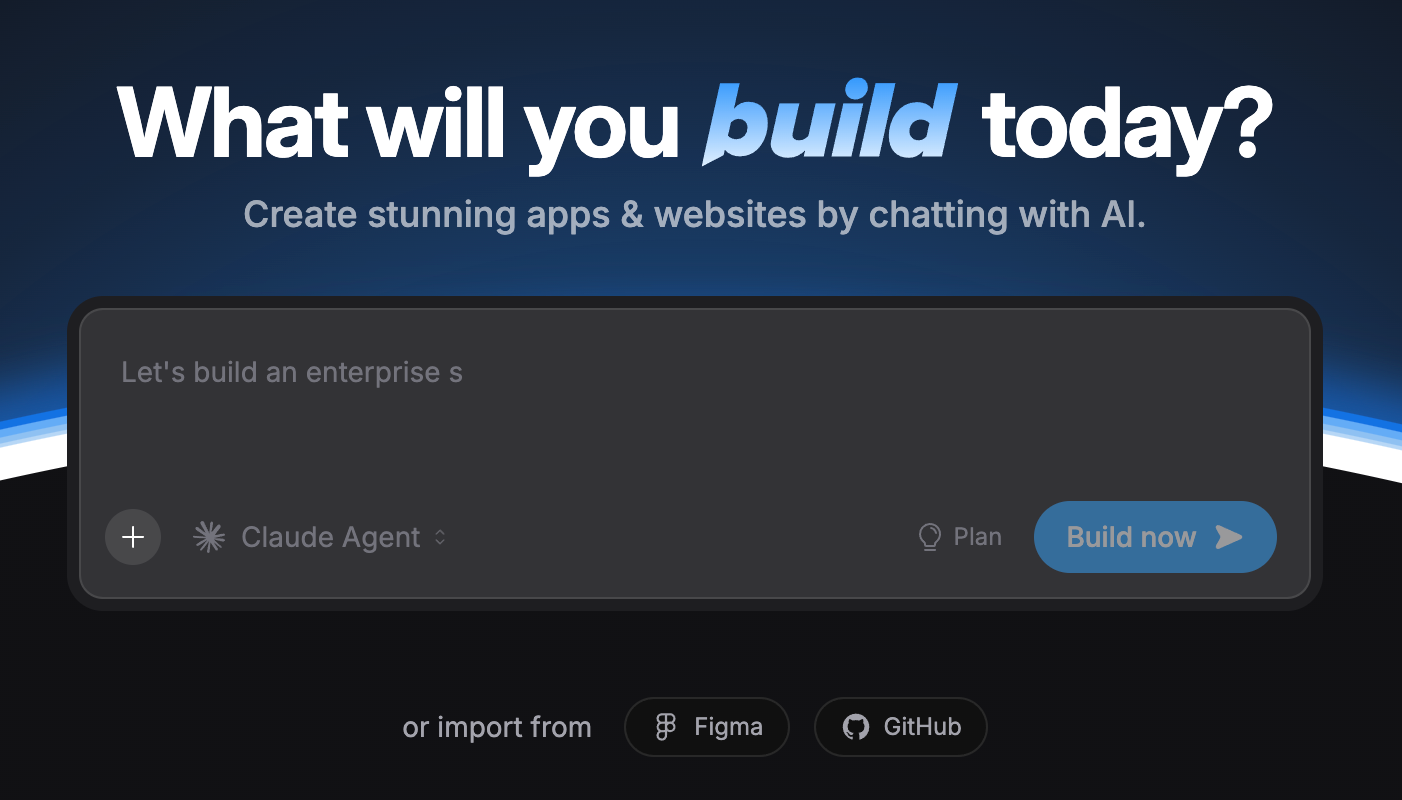
Bolt.new is an AI-powered app builder that generates complete websites, web apps, and mobile apps from a single prompt.
Instead of writing code line by line, you describe what you want in plain language, and Bolt generates a full-stack application—frontend, backend, and everything in between.
It’s built on StackBlitz’s WebContainers technology, so projects run entirely in your browser with zero local setup.
The platform uses large language models (LLMs) to translate your text into clean, production-ready code you can edit, expand, or deploy instantly.
Bolt suits non-technical creators who want to prototype quickly and experienced developers seeking to save time on boilerplate work.
Its token-based pricing model charges per AI generation, allowing you to scale according to project size.
11 Bolt.new AI features
What makes Bolt.new stand out isn’t just that it writes code; it’s how many steps it removes between your idea and a live, working app.
Here’s a closer look at the features that power its speed and flexibility.
LLM agents to generate code
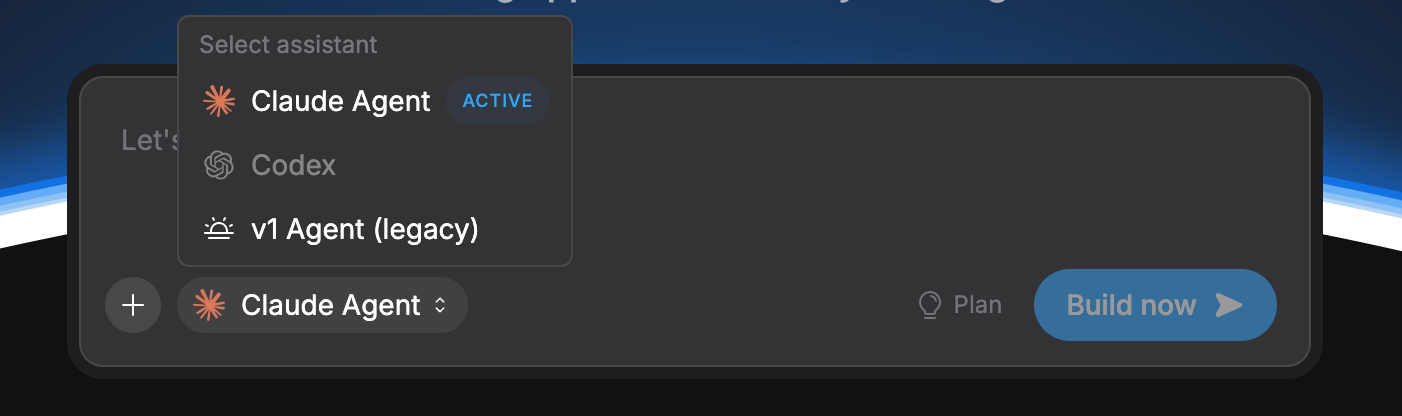
Bolt.new gives you a choice between two AI models: the advanced Claude AI agent and the legacy v1 Agent.
Both handle AI-powered code generation, but Claude AI offers better accuracy, faster responses, and deeper access to your project’s codebase.
This means it can generate more complex applications and handle full-stack app structures with fewer errors.
When you switch between the AI agents, Bolt clears the chat history to maintain a clean interface and ensure consistent code generation.
For most users, Claude AI is the recommended option for faster builds and smoother development flow.
Bolt has also hinted at upcoming support for additional AI models, like Codex.
Bolt cloud platform
The Bolt Cloud platform is your all-in-one hub for publishing, launching, and managing everything you build with Bolt.
It hosts your full-stack applications, handles your databases, and even manages custom domains, all within a clean, browser-based code editor.
Bolt Cloud manages the technical details behind the scenes, freeing you up to focus on building instead of configuring.
Database management
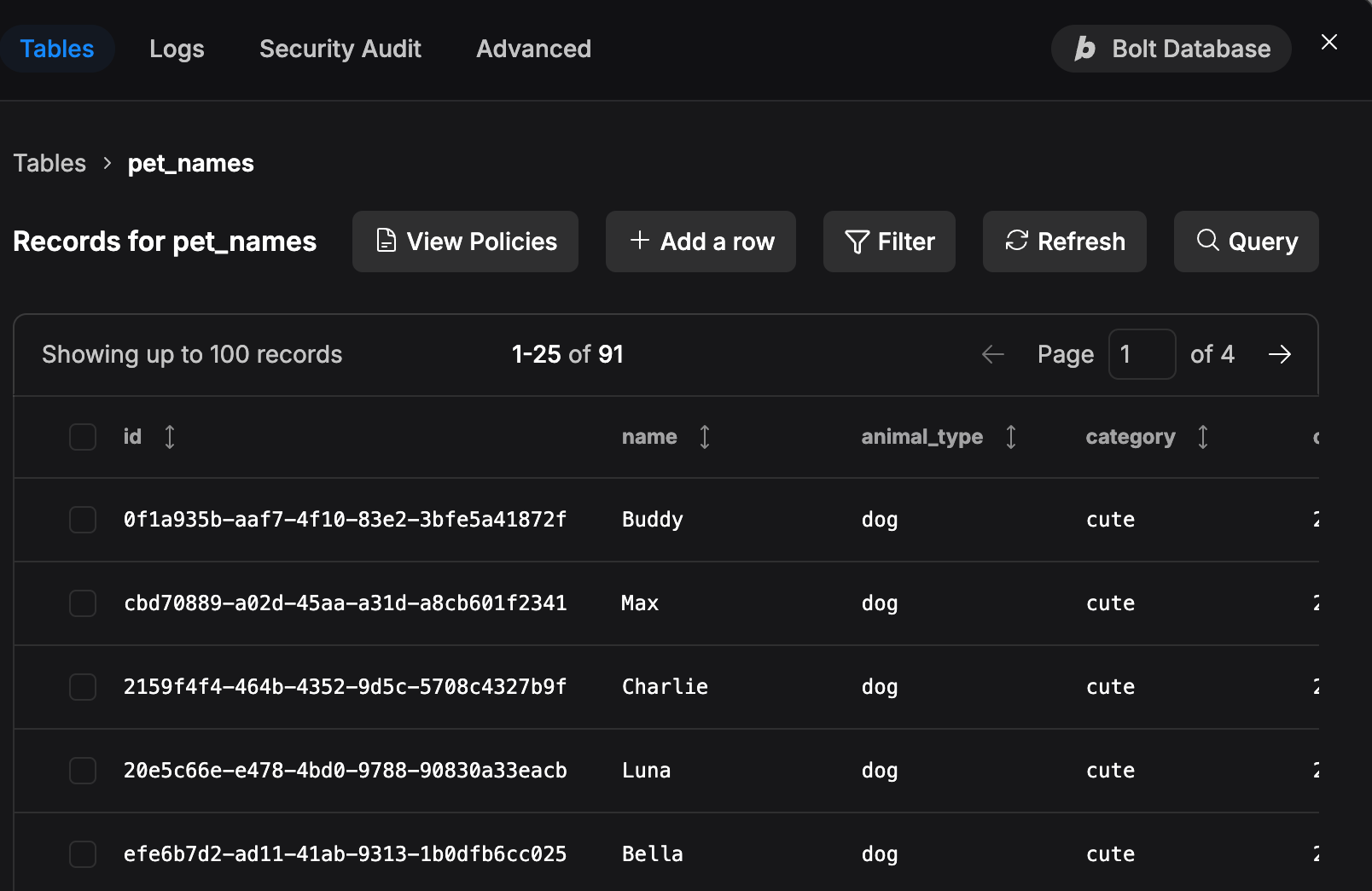
Bolt includes built-in database management directly within Bolt Cloud, so you can create, edit, and connect data without setting up anything locally.
Every new website, app, or full-stack project automatically gets a database space you can manage directly within the dashboard.
For more advanced setups, Bolt also supports connecting to Supabase, giving experienced developers richer configuration options, scalable storage, and custom backend logic.
This flexibility lets you start simple and scale your database as your project becomes more complex.
Interaction discussion mode
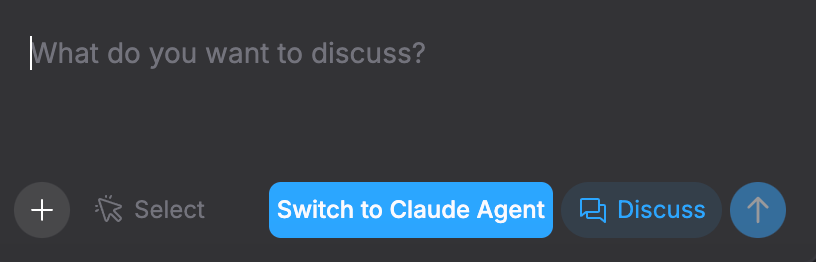
The Interaction Discussion Mode lets you pause building and brainstorm directly with the AI before making any real changes.
Instead of writing code or commands, you can ask the AI-powered app builder for creative suggestions, like how to refine layouts, improve button placement, or streamline your app or website’s user experience.
This mode feels like chatting with a developer who offers design feedback before implementation.
It’s especially handy for non-techies who want help shaping ideas in plain language before committing to new generated code. Once you’re satisfied, you can switch back to build mode and apply the changes instantly.
Hosting and domain management
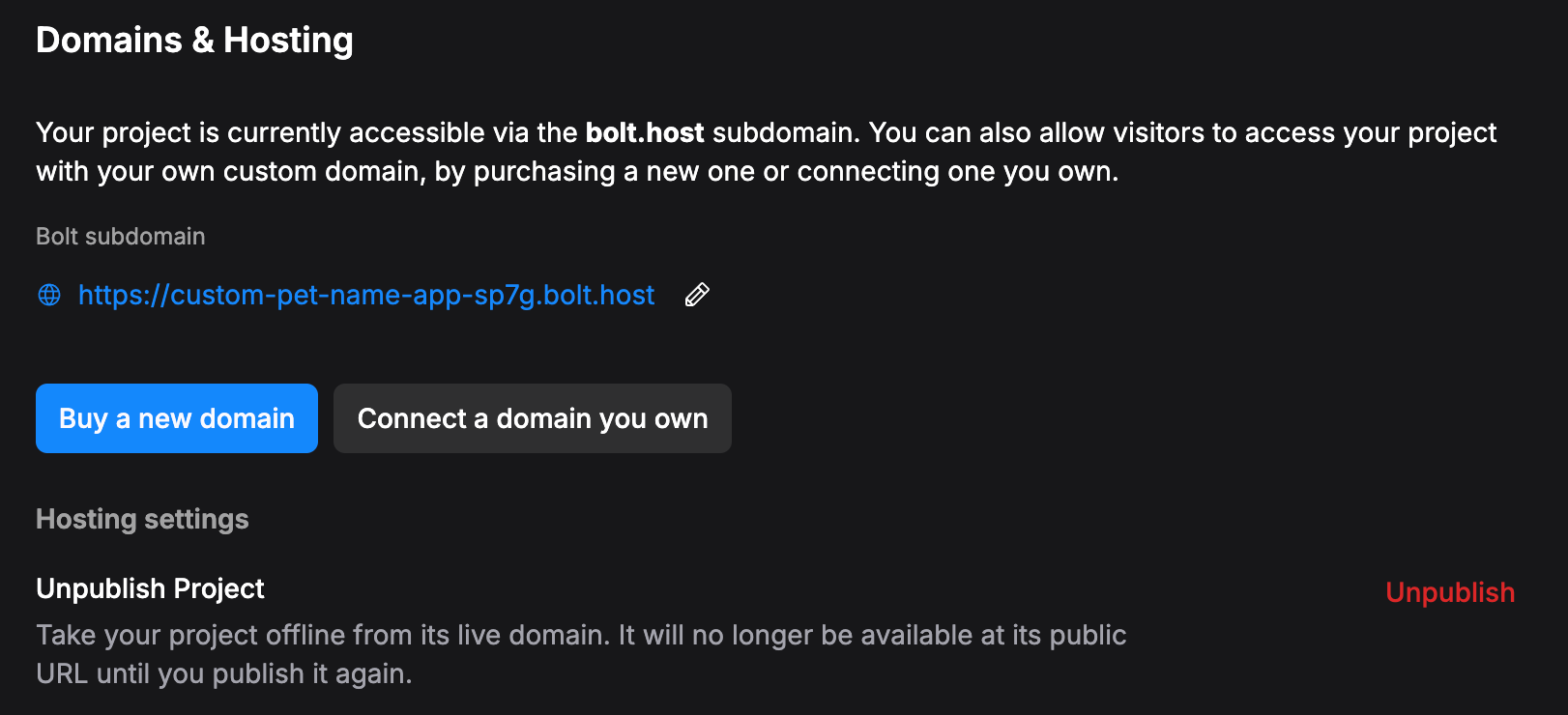
With Bolt, getting your project online takes seconds.
Every new build comes with a free Bolt URL, so you can publish and share your work instantly. There’s no local setup, deployment scripts, or manual hosting.
If you prefer more control, you can connect a custom domain directly through Bolt Cloud or export and host your app on other platforms, such as Netlify.
This flexibility makes deployment simple for non-coders while still giving experienced developers the freedom to fine-tune their deployment options for production-ready apps.
Product references
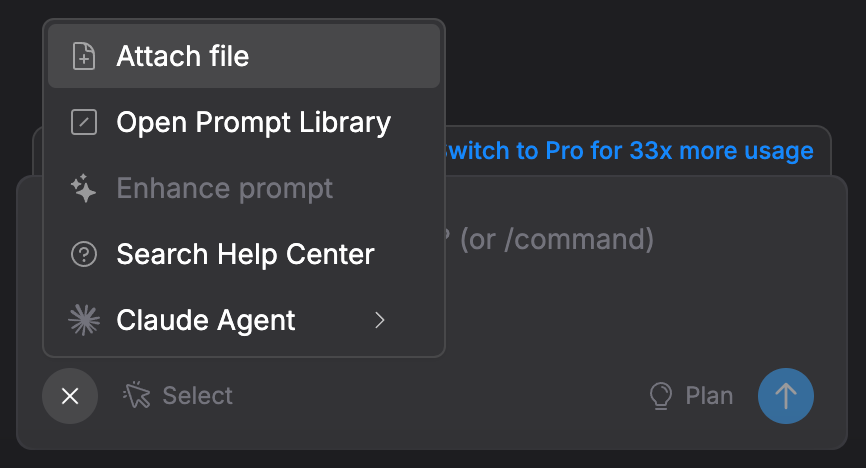
The Product References feature lets you give the AI more context for more accurate results.
You can upload images, ZIP files, CSVs, or JSON files directly into your project so the AI understands what to reference while generating or updating your working code.
This context management system helps you control what the AI “sees.”
For example, you can attach design files or data samples before prompting, then clear them once they’re no longer needed.
It’s an efficient way to keep your AI-powered development relevant, accurate, and organized, especially for complex projects with many moving parts.
Project control
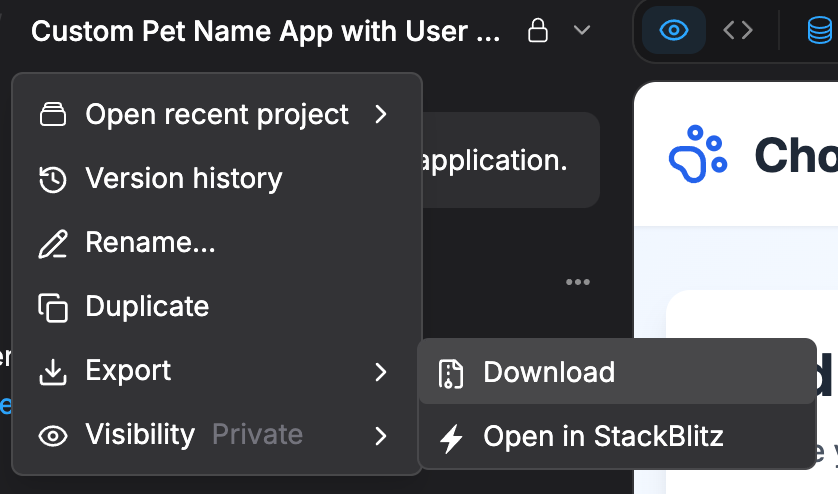
Bolt gives developers full project control, allowing you to download a local copy of your build as a ZIP file.
This makes it easy to work with the generated code manually, integrate it into your own setup, or restore it later if needed.
You can also limit the AI’s focus to specific files when making edits to prevent unintended changes elsewhere in your full-stack application, keeping your project stable and version-safe.
Whether you’re refining custom code or troubleshooting error messages, this level of control ensures a smoother developer experience and more predictable updates across larger projects.
Backups, restore, and version history
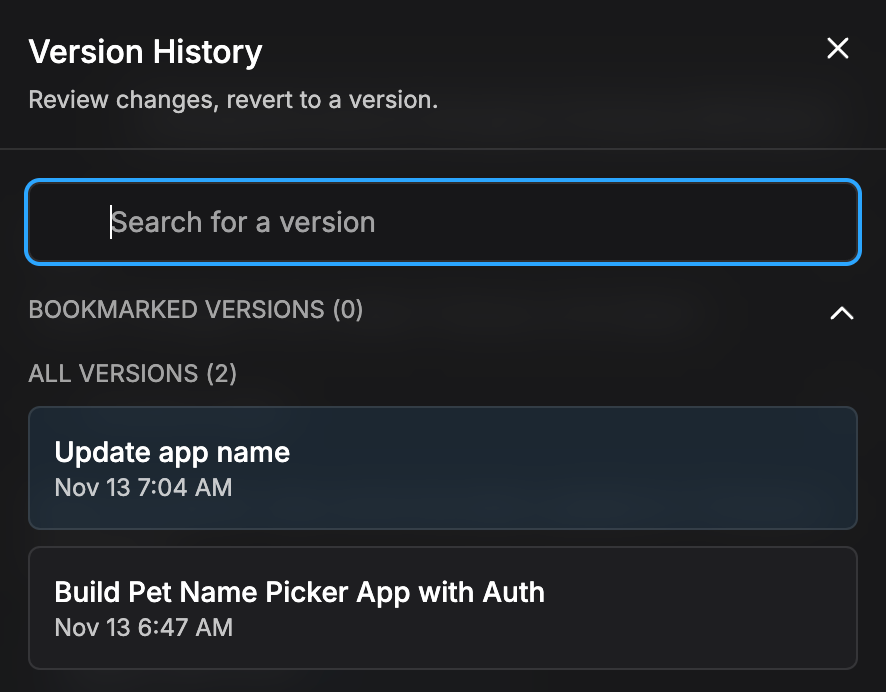
Bolt automatically tracks every change you make, storing it in a built-in version history.
This means you can go back to earlier versions of your project at any time, whether you want to fix a bug, recover lost progress, or compare edits.
Projects can be restored directly inside Bolt Cloud or by importing a local copy you’ve previously downloaded.
When you restore, the platform also brings back your chat history and database state for that version, keeping everything in sync.
For long-term backups or collaborative work, export your source code to GitHub repositories, ensuring your working apps are safe, shareable, and easy to recover, even across larger projects.
External integrations
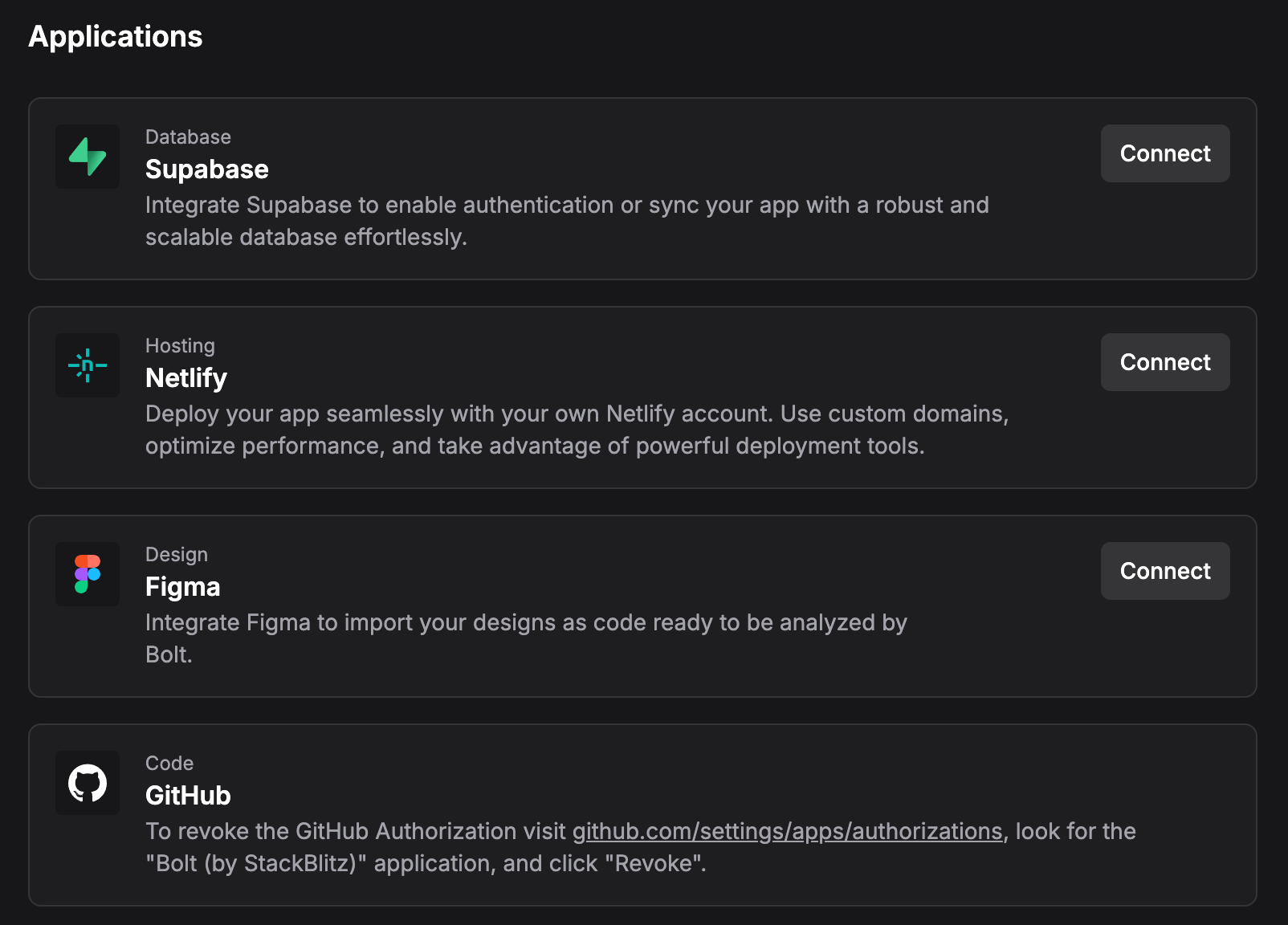
Modern apps often rely on third-party services, and Bolt makes those connections easy.
You can integrate directly with Stripe for payment processing and GitHub for version control and collaboration from inside the Bolt Cloud platform.
For more advanced automation, Bolt also integrates with tools like n8n.io, enabling you to trigger workflows when a user submits a form or completes an action on your site.
These integrations transform your AI-powered app builder into a more flexible environment for building complex applications, streamlining deployment pipelines, and supporting custom integrations without additional setup.
Code editor and live preview
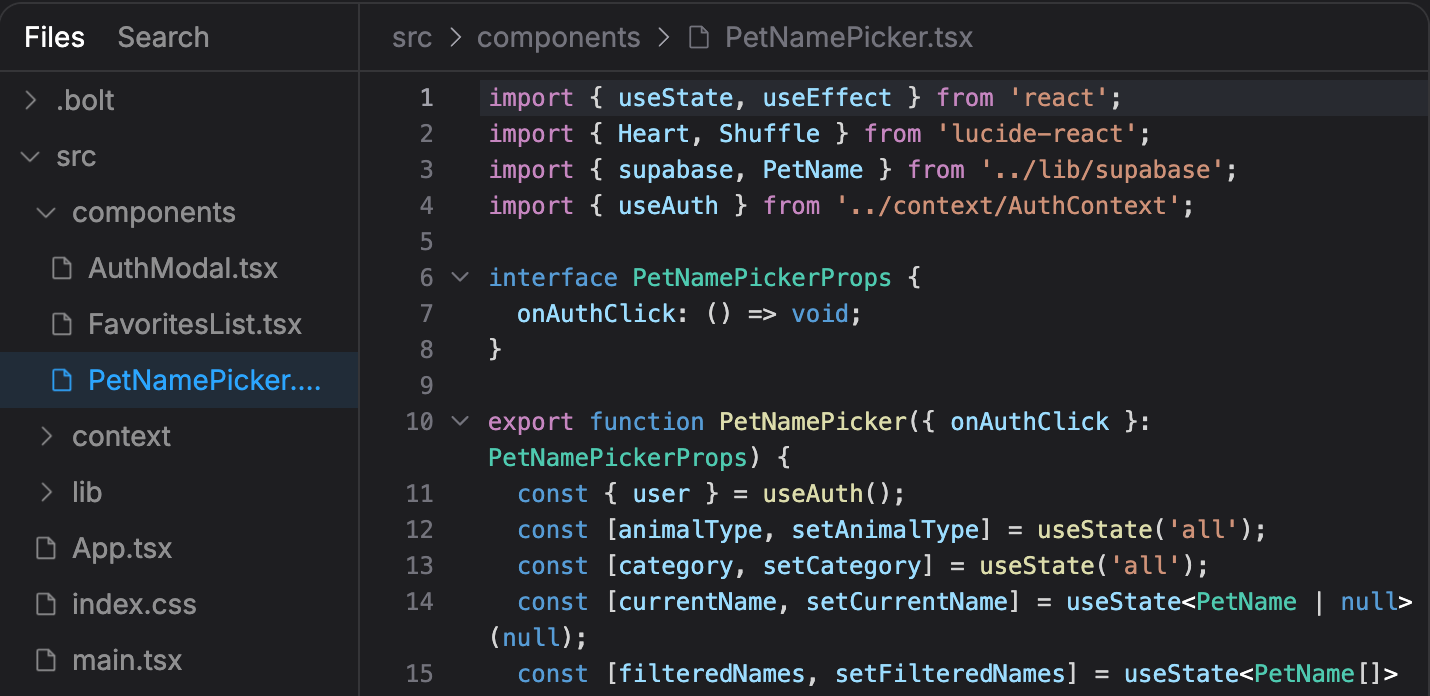
Every project opens in a built-in code editor with a live preview pane, letting you see changes in real-time as you prompt or edit.
You can toggle between AI-powered code generation and hands-on customization without needing to leave the browser.
This setup makes web development smoother for non-coders and experienced developers, giving you complete visibility into the generated code.
It’s perfect for rapid prototyping, debugging repetitive tasks, or refining layouts before you publish.
Error detection and messaging
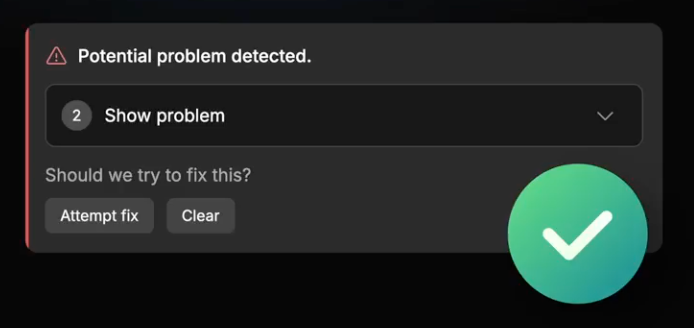
When issues arise in your project, Bolt automatically detects error messages and suggests fixes directly within the chat.
The tool identifies what went wrong, highlights the affected code, and provides clear explanations or code corrections in plain language to help you resolve the issue.
It’s an intelligent way to smooth out the learning curve, especially if you’re new to AI-powered development.
Whether you’re troubleshooting backend logic or testing complex apps, this built-in support helps you move faster and keep your working applications running cleanly.
How to use Bolt AI
Getting started with Bolt.new is refreshingly simple. There’s no local setup, no manual installs, and no need for deep technical knowledge.
Whether you’re sketching a quick prototype or shaping a full-stack build, Bolt guides you from prompt to deployment right in your browser.
Here’s how to use it, step by step.
1. Starting a new project
To begin, open the Bolt dashboard in Chrome or a Chromium browser, such as Edge or Brave, and create a fresh project.
Bolt spins up a full development environment instantly, so you don’t need Node, Git, or a local editor installed.
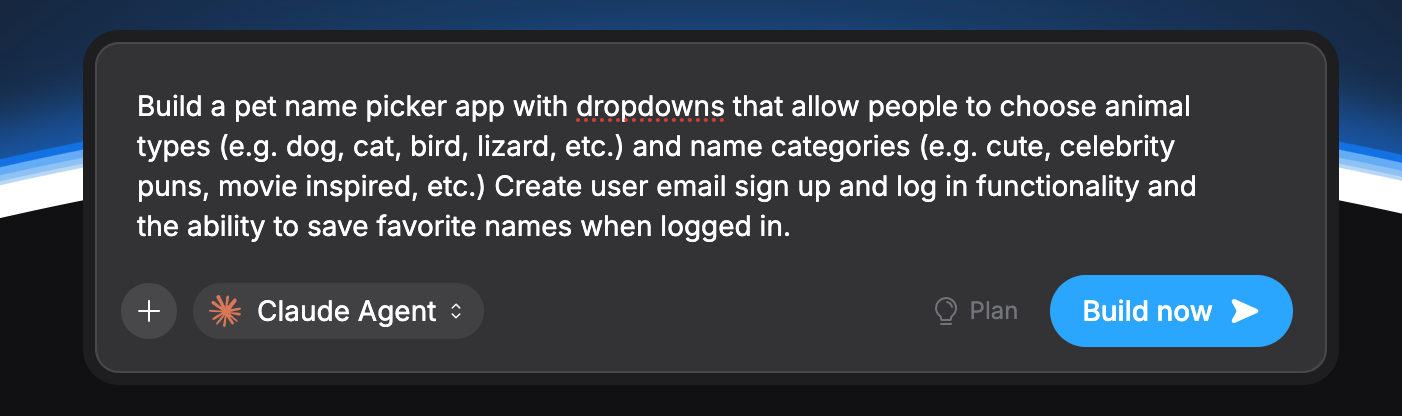
Here’s how to set up your first build:
Open Bolt.new in a new browser tab.
Click New Project to start with a clean workspace.
Type a clear, detailed initial prompt describing what you want to build (e.g., “Marketing website with a pricing page and contact form” or “Mobile app for managing tasks”).
Choose your LLM agent. Pick Claude AI for faster, more accurate AI-powered code generation.
If you’re building a mobile app, include “mobile app” in your prompt so Bolt generates an Expo-compatible project.
Press Enter to generate your first draft of working code.
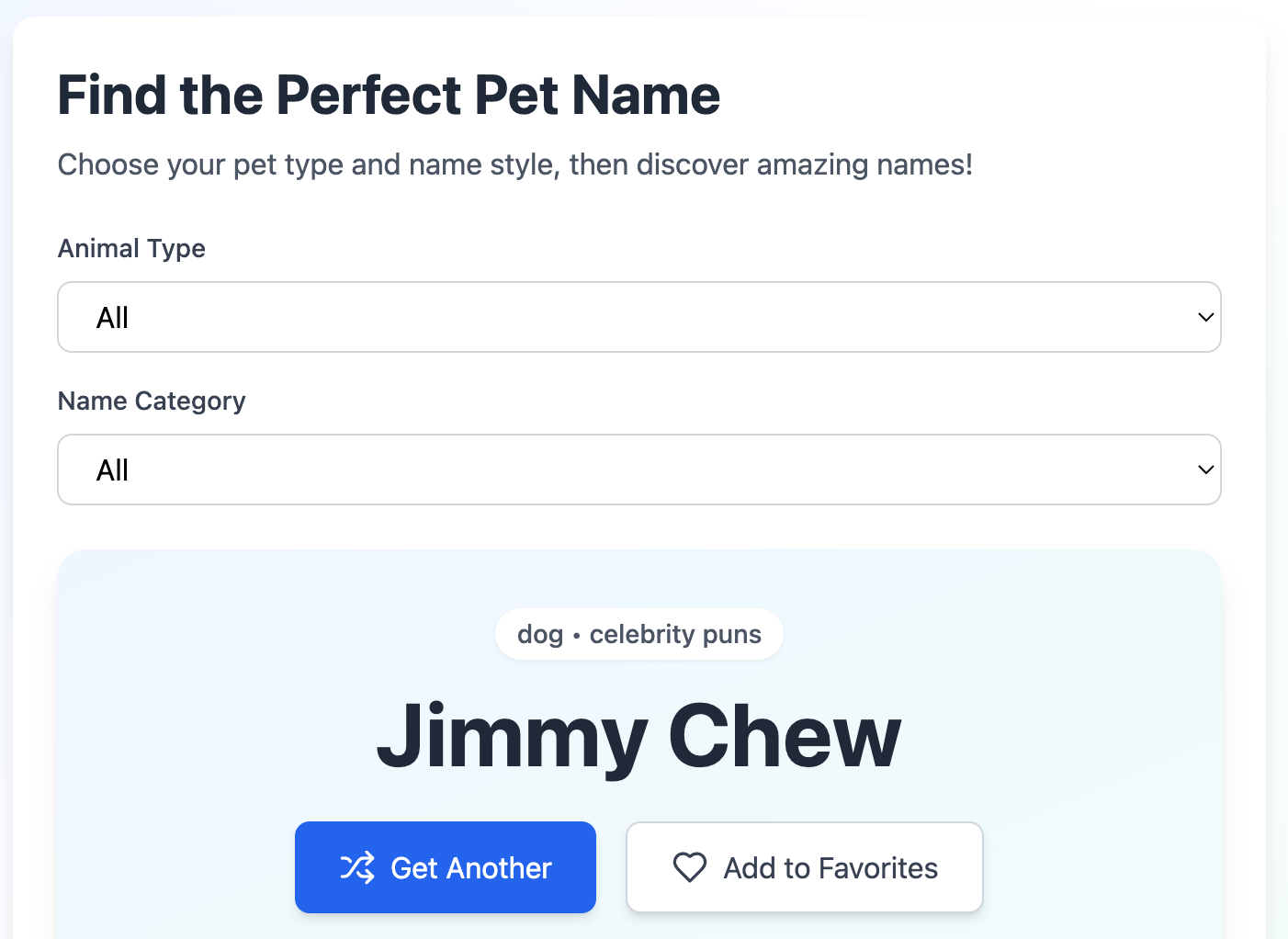
Bolt will scaffold your basic structure, set up routing, generate UI, and show it all in a live preview.
2. Refining design and structure
Once your first version appears, you can start shaping it into something closer to your final product.
Bolt lets you edit visually and through prompts, and you can combine the two to get the best results.
Follow these steps:
Click on any element in the preview to open the inspector, then adjust text, spacing, colors, or button placement.
For bigger changes, type instructions in the chat (e.g., “Change this hero section to a three-column layout”).
Open the Prompt Library to add features like dark mode, mobile menus, SEO checks, or layout adjustments.
Upload assets, such as images, ZIPs, CSVs, and JSON, through the Files panel to give the AI more context.
Switch to Responsive Mode to check your mobile layout, then ask Bolt to fix any issues.
For custom code, open the integrated code editor and manually adjust the generated source.
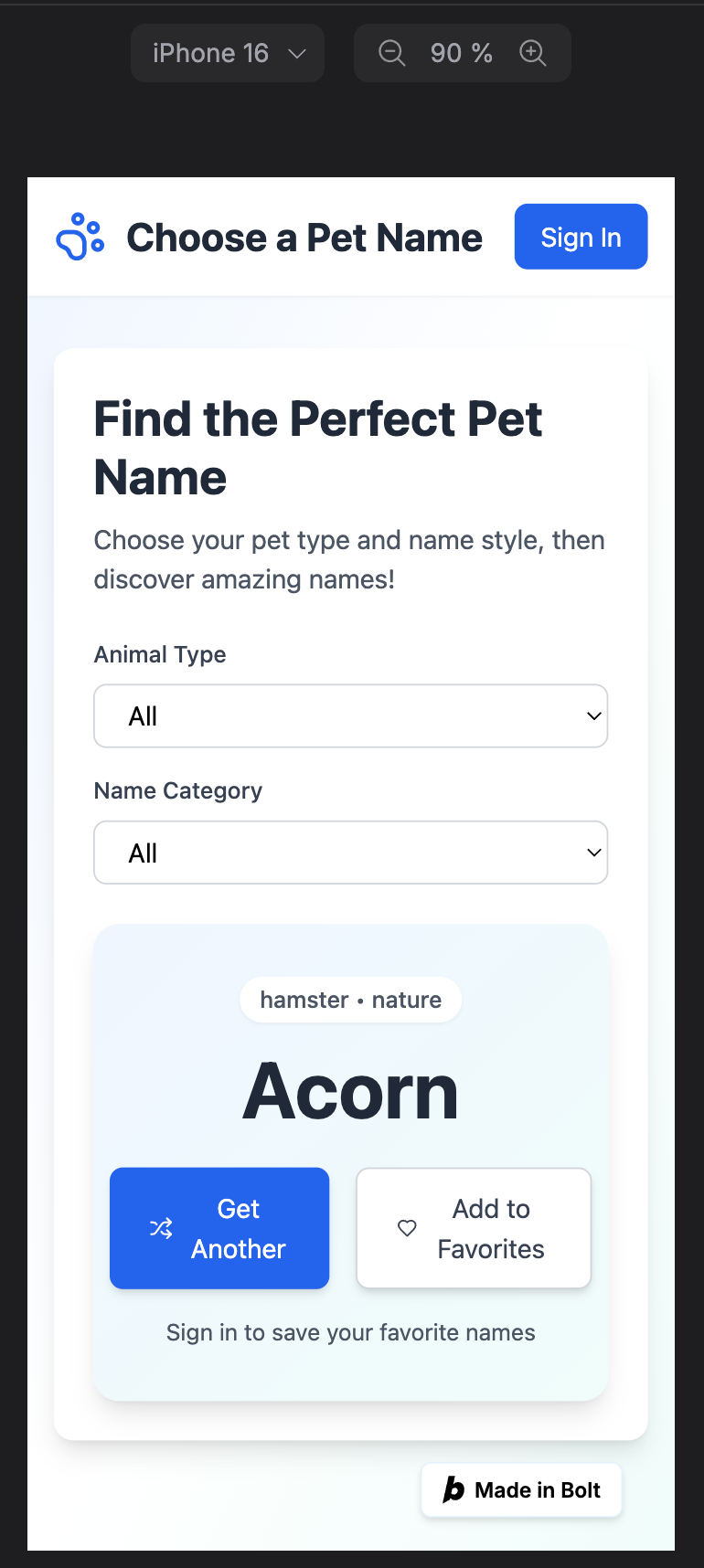
Bolt updates the entire project stack instantly as you make changes, reducing the usual stop-refresh-fix cycle.
3. Utilizing modes and automation
Bolt’s modes help you refine your project and keep the AI focused as your app gets more complex.
Instead of using features in isolation, you’ll typically move through them in a small sequence while iterating on your build.
Here’s a simple flow you can follow on any project:
Switch to Discussion Mode for ideas
Click the + icon in the chat and choose legacy v1 Agent to access Discussion Mode and Claude for Plan Mode.
Ask for layout ideas, UX improvements, or flow simplifications first before making actual changes.
A simple prompt you can use: How can I simplify this signup flow?
Use the Prompt Library to add features quickly
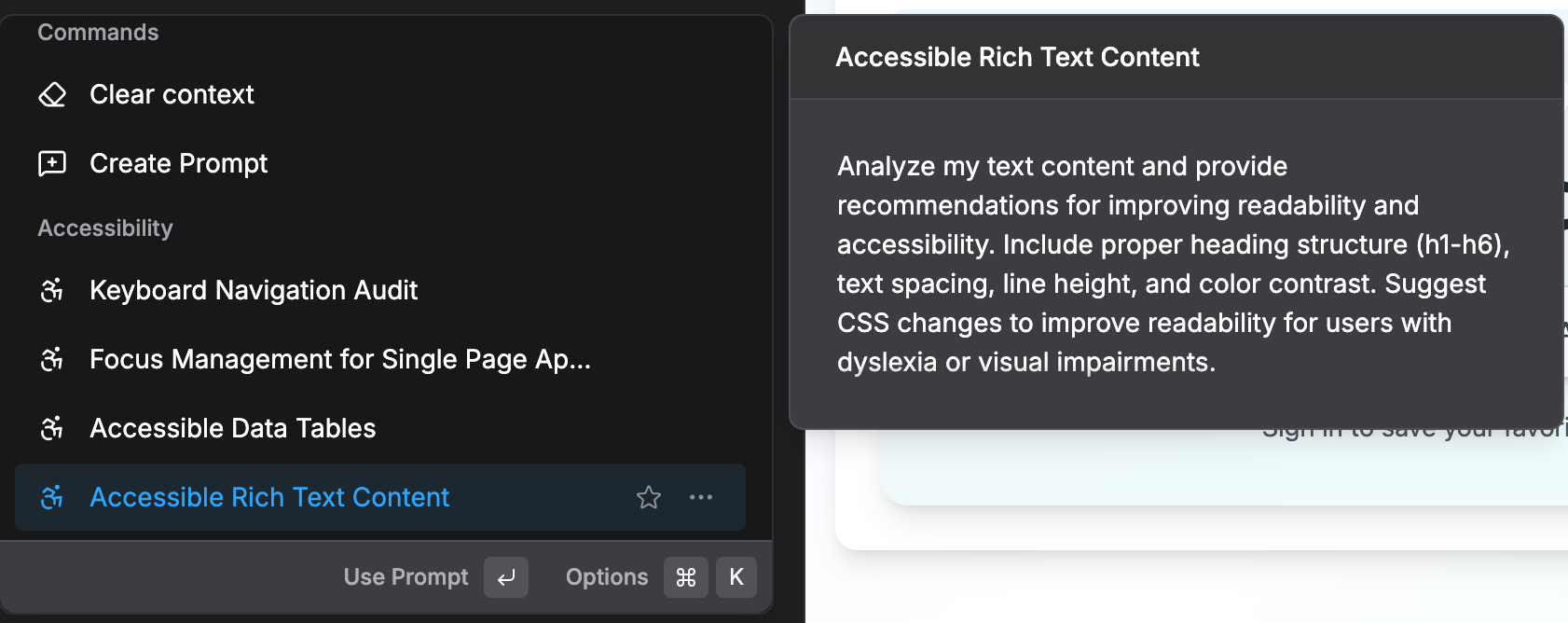
Open the Prompt Library and pick a pre-written action, such as adding dark mode, improving accessibility, or running a quick audit.
This is ideal for automating repetitive tasks without writing long prompts every time.
Add context so the AI understands your project
Upload files (images, CSVs, JSON) or paste URLs through the context management panel, then tell Bolt how to use them.
For example, type “Use this CSV as the data source for the pricing table.”
This ensures the generated code remains aligned with your actual content.
Limit Bolt to specific files when editing
When you want to change code, use the option to limit the AI to selected files before you send your prompt.
This prevents accidental edits across unrelated parts of your project and is especially useful on larger projects.
Let Bolt help with errors
If something breaks, check the error messages in the preview or logs, then ask Bolt in plain language to fix them.
For example, “Fix the TypeScript error in this component”.
The AI will propose a patch you can review and apply.
Using these modes in sequence turns Bolt from a one-off code generator into a controlled workflow for iterating on your app without losing track of what changed where.
4. Deployment and management
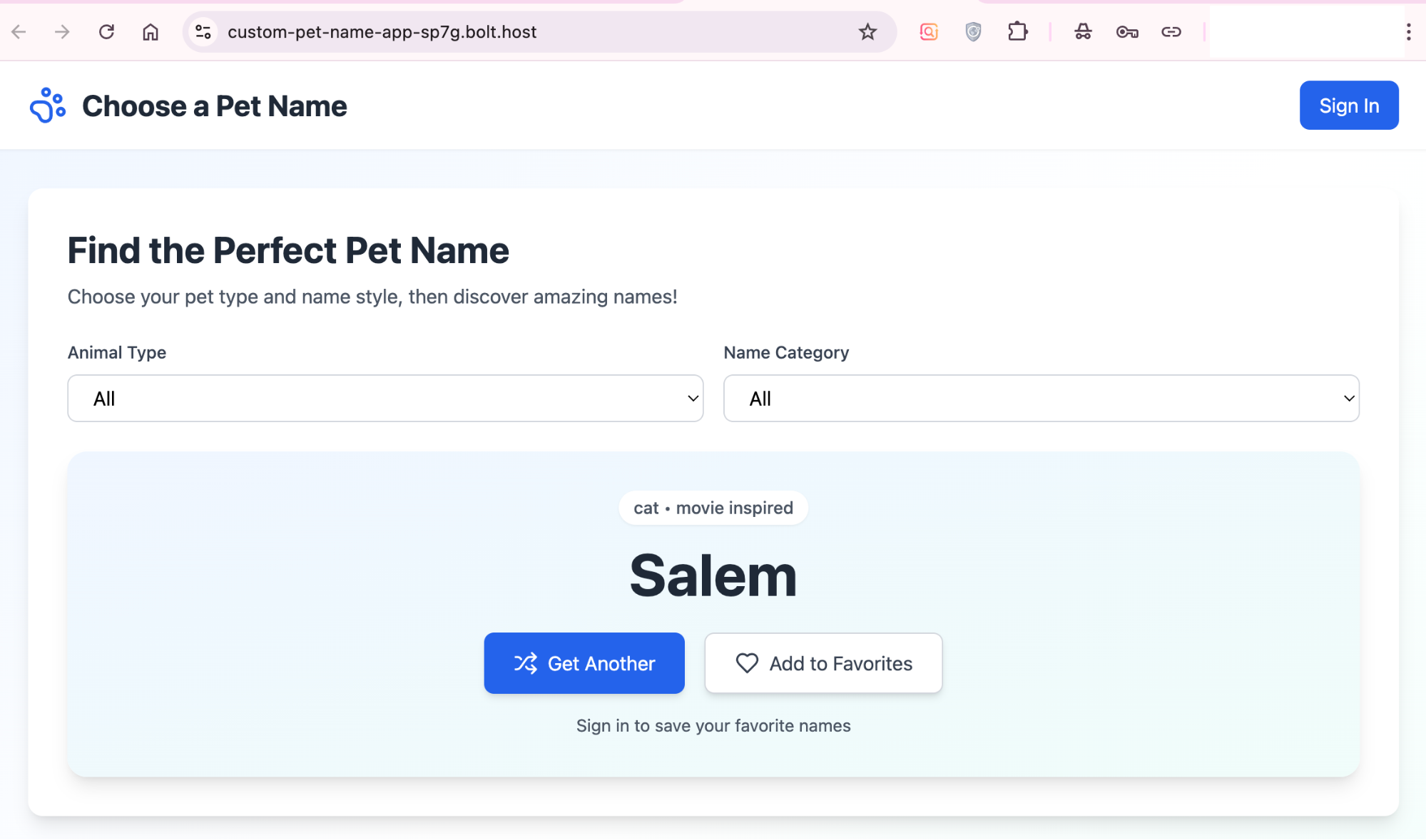
After refining your app, you can deploy it with a single click.
Bolt manages the hosting, or you can publish elsewhere if you need a custom workflow.
Follow these steps to launch your project:
Click Publish to deploy instantly to a free Bolt URL.
Preview the production version to confirm everything works as expected.
For custom domains, open Domain Settings in Bolt Cloud and connect your domain.
Prefer external hosting? Export your project and deploy to Netlify or another provider.
Download a ZIP of your source code for local editing, backups, or integration with your own tooling.
When should you use Bolt AI?
Bolt shines where speed and simplicity meet. It can generate complex applications, complete with frontend design, backend logic, and database connections, in just a few seconds.
The first draft usually includes a clean UI you can refine through prompts or manual edits.
Here’s what it does best:
Rapid prototyping: Create fully functional projects from a single prompt, saving hours of setup time.
Clean, production-ready code: Bolt simultaneously writes frontend and backend logic, producing well-structured source code you can edit or expand manually.
Accessibility for non-coders: Even if you don’t have a technical background, you can build working apps and websites and preview the results instantly.
This mix of automation and flexibility makes Bolt ideal for rapid prototyping, testing new ideas, and accelerating AI-powered app development, all within a browser-based environment.
Comments